
The Viewer
npx synapse-mindmap viewer --openThe viewer is a local web page that draws every mindmap in your data directory. It updates live while agents work. It only reads the data directory, except for the Sync Git button and archiving or restoring a session. Agents don't need it to be running.
Layout
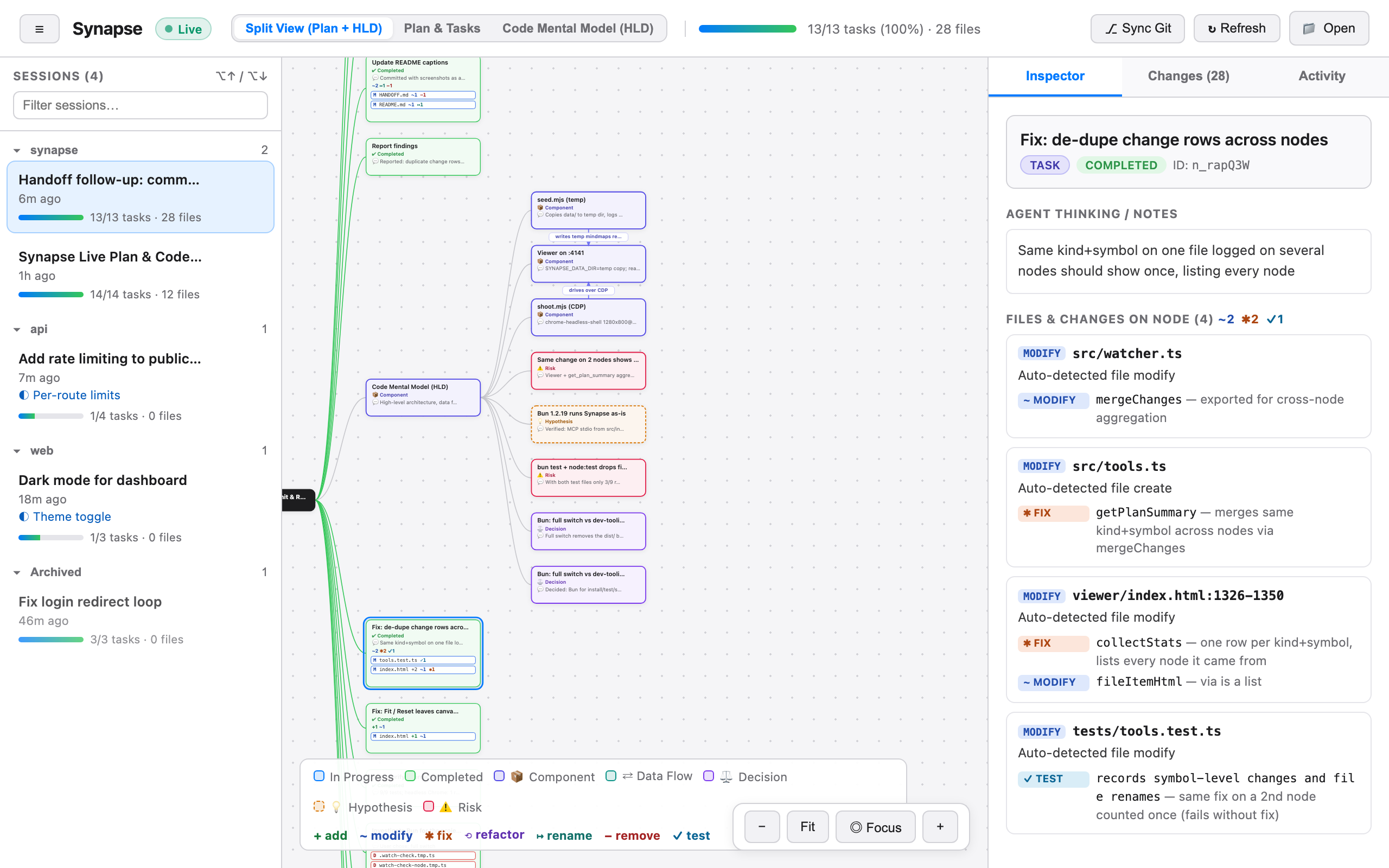
| Area | What it shows |
|---|---|
| Header | The sessions toggle (☰), the name of the open session (also on the browser tab), the Live indicator, the view switcher, the task progress bar, and the Sync Git, Refresh, and Open buttons |
| Left: Sessions | Every mindmap, grouped by repository, most recently updated first |
| Center: canvas | The plan tree and/or the code mental model |
| Right: sidebar | The Inspector, Changes, and Activity tabs |
Sessions
Each mindmap is a session. Sessions are grouped by repository, so a repository and all of its git worktrees share one group, named after the main checkout. The group with the most recently updated session comes first, and sessions without a workspace go under No repository. Each row shows the title, active task, progress (completed/total tasks), number of files touched, and when it was last updated, plus the name of the worktree if the session ran in one. Hover over a group name to see the full path.
Groups: click a group name to collapse or expand it. The viewer remembers which groups you collapsed. While you filter, every match is shown.
Archive: hover over a session and click Archive to move it to the Archived group at the bottom (collapsed by default), and Restore to bring it back. Archiving hides a finished session without deleting it, and the agent can keep writing to it. To delete a mindmap for good, the agent calls
delete_mindmap.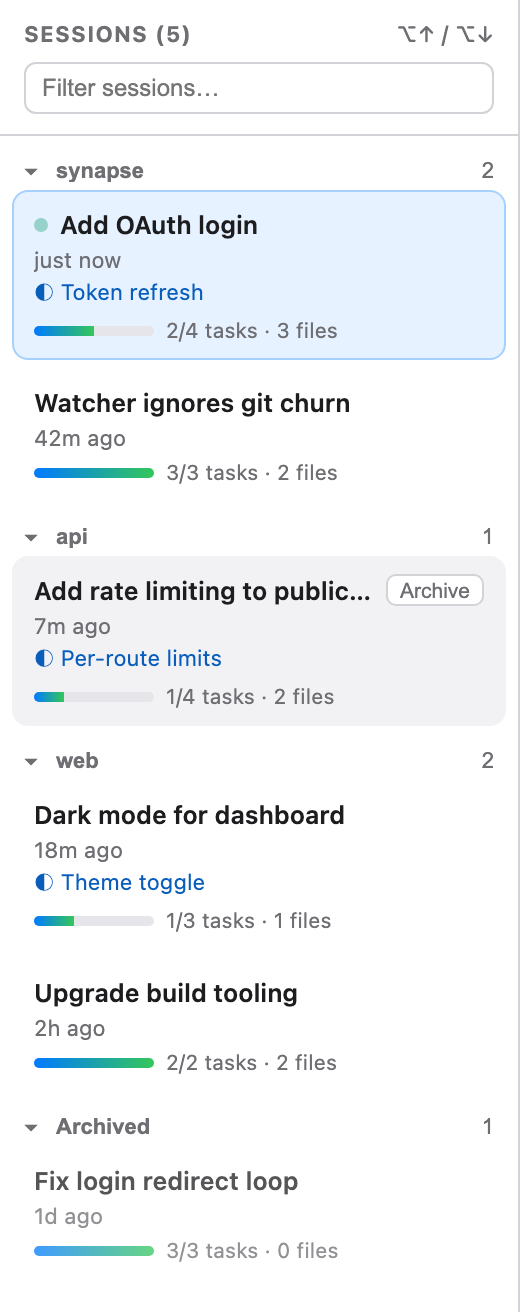
Live dot: shown on sessions updated in the last 2 minutes.
Filter: type in the box to narrow the list.
⌥ ↑ / ⌥ ↓ (Alt on Windows and Linux): switch to the previous or next session in the list as shown, skipping collapsed groups.
Unreadable sessions: a mindmap file that can't be read, because of its permissions, damaged JSON, or not being a valid mindmap, is listed at the bottom of the sidebar with the reason. It can't be opened, but the agent can still remove it with
delete_mindmap.Links: the URL hash holds the session ID, for example
http://localhost:4040/#mm_Ab12Cd34. Bookmark or share it to open that session directly, or paste it into an open viewer tab to switch to it. A link to a session that doesn't exist leaves the open session on screen.Back and Forward: each switch adds an entry to the browser's history, so these buttons step through the sessions you opened.
☰ collapses the sidebar. The viewer remembers this setting. In narrow windows it opens the list as a drawer instead.
When an agent updates a session you aren't viewing, only the session list refreshes. The canvas keeps showing the session you picked.
Views
Use the view switcher in the header to pick what the canvas shows:
| View | Shows |
|---|---|
| Split View (Plan + HLD) | The plan tree and the code mental model side by side |
| Plan & Tasks | Only the plan: tasks, their statuses, and the files attached to them |
| Code Mental Model (HLD) | Only the architecture branch: components, data flows, decisions, hypotheses, and risks, with their labeled flow links |
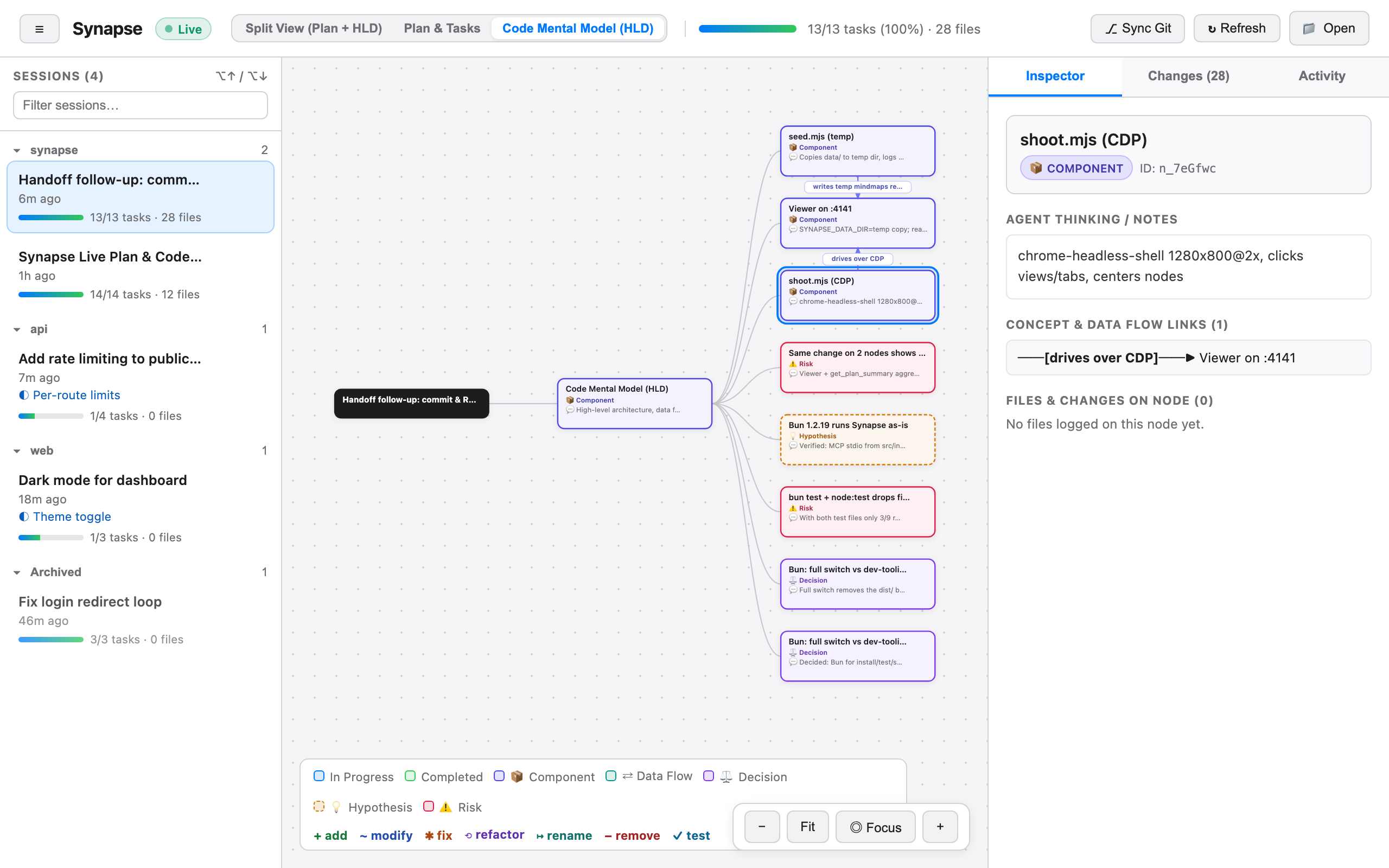
Node cards are colored by status (in progress, completed, blocked) or by concept type (component, data flow, decision, hypothesis, risk). Planned cards stay neutral. See the legend at the bottom of the canvas. Cards with logged changes show a tally such as +2 ✱1 ⟲1. Long labels and notes are cut short on the card. Hover over a card to read them in full.
The tree grows to the right. In the split view, plan tasks come before the architecture branch, so the mental model never splits the plan in two. A long run of sibling cards without children (7 or more, such as a flat plan) wraps into rows inside a dashed frame, read left to right and then top to bottom. Tasks in the frame are numbered in that order.
Drag to pan, and scroll to zoom. Zooming centers on the cursor and follows how far you scroll, so a trackpad zooms as smoothly as a mouse wheel. Scrolling sideways doesn't zoom. Pinching a trackpad zooms the canvas the same way in Chrome, Edge, and Firefox. In Safari, a pinch zooms the whole page instead. The controls at the bottom right are:
- − / +: zoom around the middle of the canvas.
- Fit: show the whole map.
- ◎ Focus: center the task the agent is working on (the most recently updated task in progress) at full size. If no task in the current view is in progress, it shows the root at the left edge.
When you open a session or switch views, the canvas fits the whole map if its cards are still readable that way. Otherwise it focuses the active task. When the agent starts a different task, the canvas moves to it. Other live updates leave the canvas where you put it. The selected node has a blue ring around it.
Picking something in the sidebar brings it into view: jumping along a link in the Inspector, clicking an Activity entry, clicking a file, or picking a change kind in the Changes tab. If the node you jump to is hidden in the current view, the view switches to the split view. If the cards are already in view at a readable size, the canvas stays put. Otherwise it pans to them, zooming out only as far as needed to show them all, or zooming in from a far zoomed-out view until they're readable.
Find on the map
Press /, or click the box at the top left of the canvas, and type part of a card's label, a file path, a symbol name, or a node ID. Every matching card is highlighted. The first match is selected and brought into view, unless the selected card already matches. The box shows which match is selected, for example 2 of 5.
- Enter / Shift Enter: select the next or previous match. Matches are in outline order: a card, then its children, top to bottom. Matches hidden in the current view come last, and going to one switches to the split view.
- Esc: clear the box and the highlight.
A file path or symbol matches every card that logged it, including the old names of renamed files and symbols. The highlight stays while you keep typing and when live updates arrive.
Theme and narrow windows
The viewer follows your system's light or dark setting.
To keep room for the session name, the view switcher shows short names (Split, Plan, HLD) below 1400 pixels wide, and the toolbar shows icons only below 1200. When the canvas is too narrow for the legend beside the zoom controls, the legend moves above them.
Below 900 pixels wide, for example in a side pane next to your editor, the layout changes:
- The Inspector, Changes, and Activity tabs move below the canvas.
- ☰ opens the session list as a drawer over the canvas. Picking a session closes the drawer.
- The legend is hidden.
Inspector
Click a node to inspect it. The Inspector shows:
- The label, type, status, and node ID. Agents use the ID in tool calls, so it's handy when you want to point the agent at a node.
- Agent Thinking / Notes: the node's
notes. - Concept & Data Flow Links: incoming and outgoing arrows with their labels. Click a link to jump to the node at the other end.
- Files & Changes on Node: every file attached to the node, with its action, line range, summary, and symbol-level changes.
Changes tab
The Changes tab lists every file in the session:
- Changed Files, newest first. Each file shows its action (
create,modify,rename,delete), its change rows, and the nodes it was logged on ("via"). - Read for Context: files the agent only read.
Filter chips at the top (All, + Added, ~ Modified, ✱ Fixed, ⟲ Refactored, ↦ Renamed, − Removed, ✓ Tested) narrow the list to one kind of change. The selected kind is also highlighted on the canvas, so you can see at a glance which tasks and components contain, for example, fixes. Click a file to highlight every node that touched it. Click it again to clear the highlight.
Activity tab
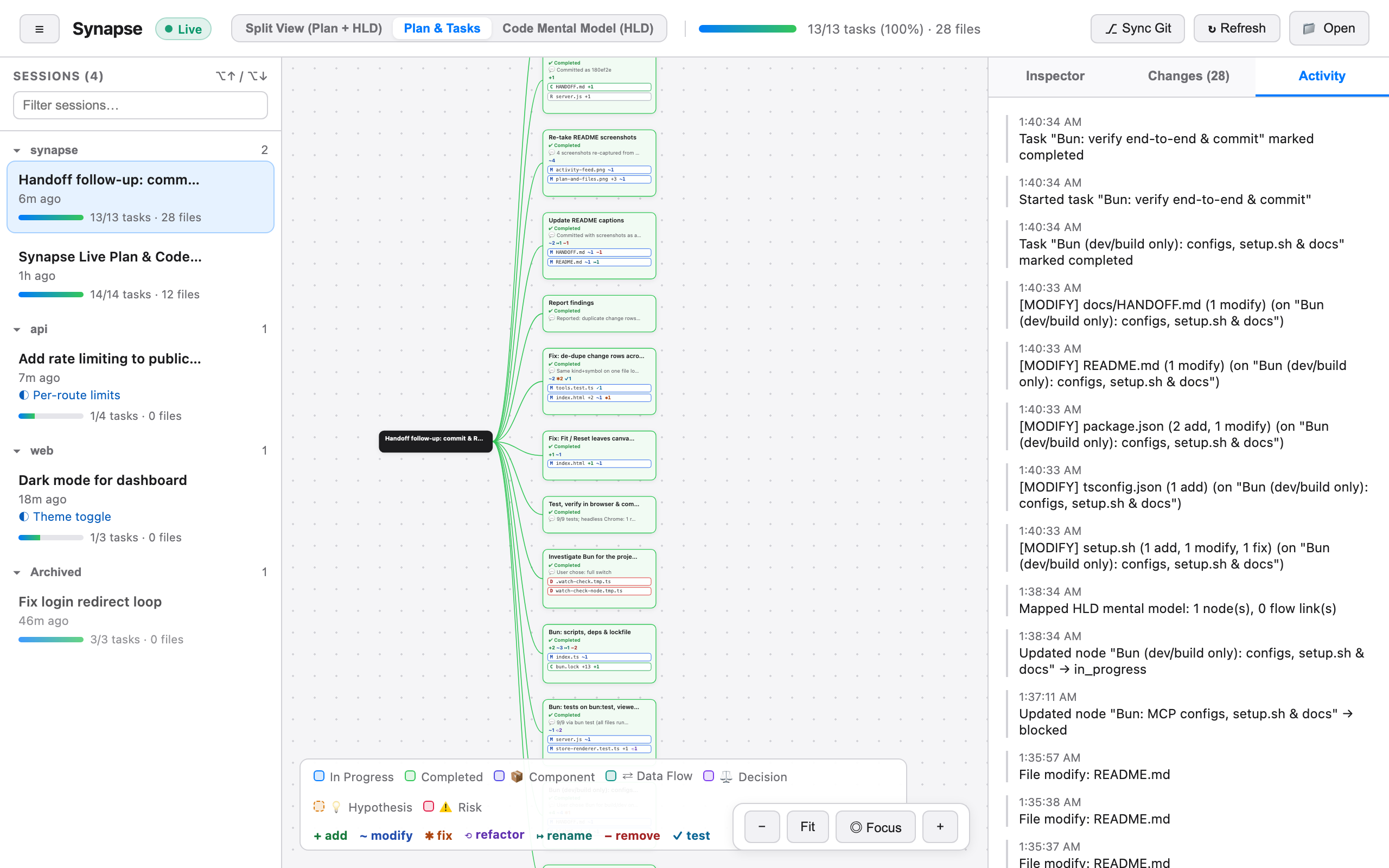
The Activity tab is a timeline of everything that happened in the session, newest first, under a heading for each day (Today, Yesterday, or the date): mindmap creation, plan status changes, HLD mappings, links, file touches with change tallies, and git syncs. Hover over a time to see the full date. Each session keeps its latest 100 entries.
Click an entry to select its node and bring it into view. The tab stays open, so you can step through entries one by one, and the entries about the selected node are marked with a blue bar. Entries about a node that has since been removed can't be clicked.
Sync Git
⎇ Sync Git reads git status and git diff in the session's workspace and attaches every uncommitted change to the active task. This is the same as the agent calling sync_git_status. Use it when the agent edited files without logging them. It only works for sessions that have a workspacePath, which the agent sets in create_mindmap. For other sessions, nothing is synced. See How It Works → Git sync for details.
Other buttons
- ↻ Refresh reloads the session list and the current mindmap. You rarely need it because updates arrive live.
- 📁 Open loads a mindmap JSON file from disk to view it. The file isn't copied into the data directory.
The Live pill in the header changes to Reconnecting… if the viewer loses its connection to the viewer server.
Ports
The viewer listens on port 4040 by default. If 4040 is taken, it tries the next 20 ports, then lets the operating system pick a free one, and prints the URL it chose. A port counts as taken if anything answers on 127.0.0.1 or ::1. If you set the port with --port <n> or SYNAPSE_PORT, the viewer uses exactly that port and exits with port N is already in use if it's busy:
npx synapse-mindmap viewer --port 5050
SYNAPSE_PORT=5050 npx synapse-mindmap viewer
Security
The viewer is for local use only:
- It binds to
127.0.0.1, so other machines can't connect to it. - It answers only requests addressed to
localhost,127.0.0.1, or[::1]on its own port, and returns403for any otherHost. This blocks DNS-rebinding attacks. - Its write actions, Sync Git and Archive/Restore, require a JSON request from the viewer's own origin, so other websites can't trigger them.